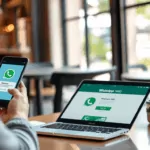
In one minute: Open a browser, visit web.whatsapp.com, scan the QR code from WhatsApp on your phone under Linked Devices, and your chats appear on your computer. This guide covers WhatsApp login on PC, Mac, iPhone, Android, and tablets, plus security best practices, multi-device tips, and fixes for common WhatsApp Web login errors.
Quick cautionary story: Priya used a cafe computer and forgot to log out of WhatsApp Web. Hours later, a stranger replied to her friend from her account. The fix was simple in hindsight: log out on the cafe computer or remotely from her phone under Linked Devices. You will find that and other safety steps below.
What is WhatsApp Web login?
WhatsApp Web is the browser version of WhatsApp that mirrors your chats securely on a larger screen. It supports media, voice notes, reactions, starred messages, and multi-device login. The official WhatsApp login page for browsers is web.whatsapp.com.

How to log in to WhatsApp Web on a computer
- Open Chrome, Safari, Edge, Firefox, or Opera and go to web.whatsapp.com.
- A QR code appears.
- On your phone, open WhatsApp, tap “Linked Devices“, then tap Link a Device.
- Point your phone at the QR code. Your chats load on the computer.
WhatsApp Web login on iPhone
- On the computer, visit web.whatsapp.com.
- On iPhone, open WhatsApp, tap Settings, then “Linked Devices“, then Link a Device.
- Scan the on-screen QR code.
WhatsApp Web login on Android
- On the computer, visit web.whatsapp.com.
- On Android, open WhatsApp, tap the three dots for Menu, choose Linked Devices, then Link a Device.
- Scan the QR code.
WhatsApp Web on tablets and mobile browsers
On tablets, request Desktop site in the browser and open web.whatsapp.com to display the QR code. Link it using Linked Devices on your phone. This also works on mobile browsers that can request a desktop site.
WhatsApp QR code login explained
The QR code pairs your phone with the browser session for your account. After linking, multi-device support allows continued use even if your phone is offline for a while.
Multi-device WhatsApp login in 2025
You can link multiple browsers or computers at once. Manage all active sessions from Linked Devices on your phone to review or remove access anytime.
Browser compatibility for WhatsApp Web
| Browser | Supported for WhatsApp Web? |
|---|---|
| Chrome | Yes |
| Safari | Yes |
| Microsoft Edge | Yes |
| Firefox | Yes |
| Opera | Yes |
Works on Windows, macOS, Linux, and tablets that can load desktop websites.
Security and safe WhatsApp login practices
- Always type web.whatsapp.com yourself.
- Check the padlock in the address bar.
- On shared devices, choose Log out when finished.
- Turn on two-step verification in WhatsApp settings for extra protection.
- Never share your QR code.
Troubleshooting WhatsApp Web login
| Symptom | Likely cause | What to try |
|---|---|---|
| QR code will not scan | Camera smudges, glare, cache, slow internet | Clean camera, increase screen brightness, refresh the page, try another browser, ensure phone and computer are online |
| “Could not connect to WhatsApp” | Network, VPN, firewall | Disable VPN, check Wi-Fi, restart router, try a different network |
| Messages not syncing | Outdated app, background restrictions | Update WhatsApp on phone, disable battery optimization for WhatsApp, refresh WhatsApp Web, re-link the device |
| Frequent logouts | Cleared cookies, incognito session | Use a regular window and allow cookies, re-scan QR code |
| QR code keeps refreshing | Idle tab, blocked scripts | Keep tab active, allow scripts and cookies for web.whatsapp.com |
Manage linked devices and sessions
| Task | Where to tap | Result |
|---|---|---|
| See active sessions | Phone, then Linked Devices | View all browsers and computers linked |
| Log out a single device | Phone, then Linked Devices, select device, then Log out | Ends that session immediately |
| Log out everywhere | Phone, then Linked Devices, then Log out from all devices | Ends all web and desktop sessions |
| Log out in browser | WhatsApp Web, then three dots menu, then Log out | Ends that browser session |
Benefits of WhatsApp Web login
- Faster typing and multitasking: Use a full keyboard and manage files with drag and drop.
- Multi-device freedom: Keep working even when your phone is charging or offline for a while.
- Better focus: Desktop notifications and pinned chats streamline work and study.
- Easy media sharing: Upload photos, videos, documents, and voice notes from your computer.
- Session control: Add or remove devices as needed from your phone.
Community voice:
From Reddit: Solution to ‘You need the official WhatsApp to log in’
Community reports point to version mismatches, browser or cache issues, camera permissions, and network problems. Common fixes include updating WhatsApp and your browser, refreshing the QR, clearing cookies, re‑linking devices, and avoiding third‑party builds.
FAQs
1) What is the official WhatsApp Web login page?
Go to web.whatsapp.com in a browser.
2) How do I log in to WhatsApp Web?
Open web.whatsapp.com, then on your phone go to “Linked Devices” and scan the QR code.
3) Can I use WhatsApp Web without my phone online?
You must link with your phone first. After linking, multi-device allows limited use even if your phone is offline for a while.
4) Is WhatsApp Web safe?
Yes. WhatsApp uses end-to-end encryption. Follow safe-login tips, use the official site, and log out on shared devices.
5) How do I log out remotely?
On your phone, open Linked Devices, select the device, and tap Log out.
6) Which browsers work with WhatsApp Web?
Chrome, Safari, Edge, Firefox, and Opera.
7) Can I use WhatsApp Web on a tablet?
Yes. Open web.whatsapp.com in desktop mode and link it from your phone.
8) Why will the QR code not scan?
Clean the camera, brighten your screen, refresh the page, and ensure both devices are online.
9) Why are messages not syncing on WhatsApp Web?
Update the app, allow background activity on your phone, refresh the browser, or re-link.
10) Can I send files from WhatsApp Web?
Yes. Click the paperclip icon in a chat to send images, videos, documents, and more.
11) How do I pin chats or search quickly?
Use the chat list to pin conversations and the search bar to find messages or contacts.
12) How many devices can I link?
You can link multiple browsers or computers and manage them under Linked Devices.
13) What if WhatsApp Web is down?
Wait and try again, switch networks or browsers, and check from your phone’s Linked Devices to re-link if needed.
14) Does two-step verification affect WhatsApp Web?
Two-step verification protects registration on your phone number. It is recommended for overall account security.
15) How do I keep my data private on shared computers?
Use only web.whatsapp.com, avoid saving passwords, and always log out after use.
Disclaimer: This guide is for general information. Features vary by device, app version, and region. Always follow WhatsApp’s official instructions and policies.
References:
- WhatsApp Web and Desktop Help Center: https://faq.whatsapp.com/
- Linked Devices on WhatsApp: https://faq.whatsapp.com/1317564962315842
- About end-to-end encryption: https://www.whatsapp.com/security/
- Download and device support overview: https://www.whatsapp.com/download/